
Receive Taler donations
Want to receive donations for your project without compromising on user privacy? Consider using Taler based donations on F-Droid!
We have based this tutorial on the public Taler demo setup, since F-Droid contributors do not have access to any other instance. If you have access to a Swiss bank account, you can receive Taler donations on the Swiss instance.
-
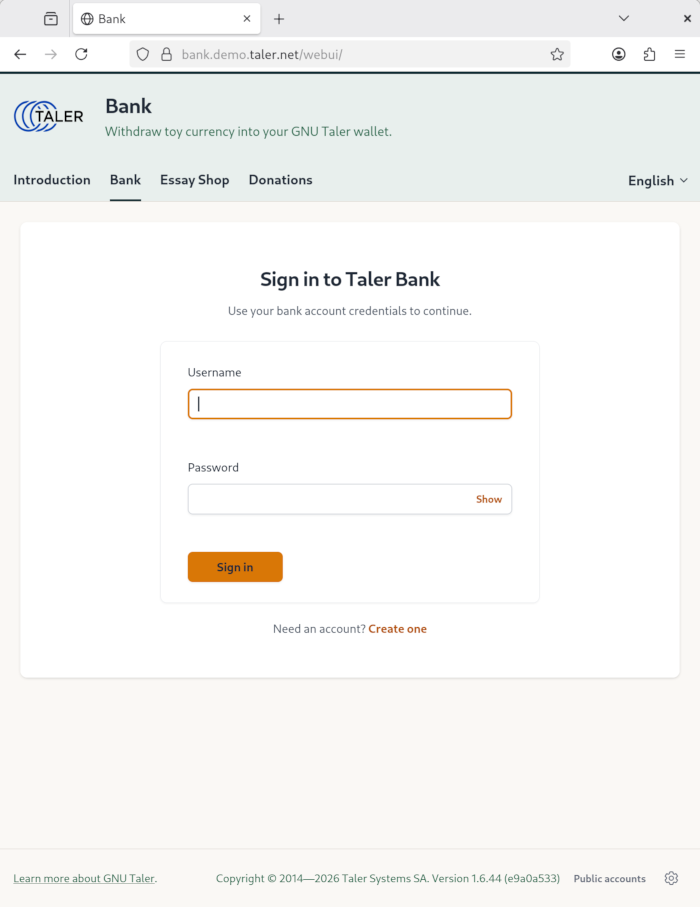
گام 1
Go to Taler Demo Bank, find the link for creating an account and click it.
-
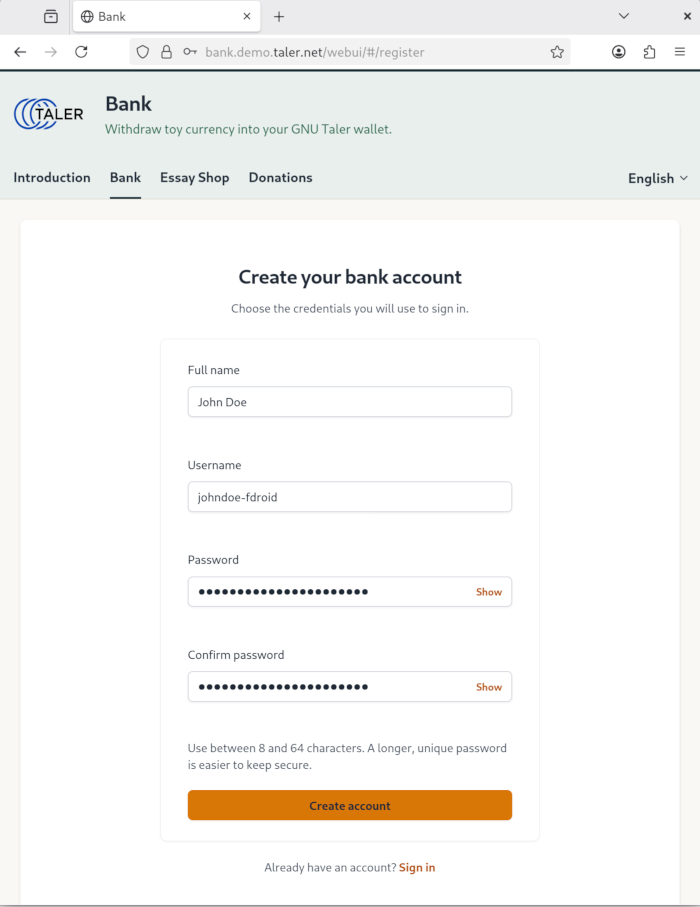
گام 2
Fill out the sign up form and submit it.
-
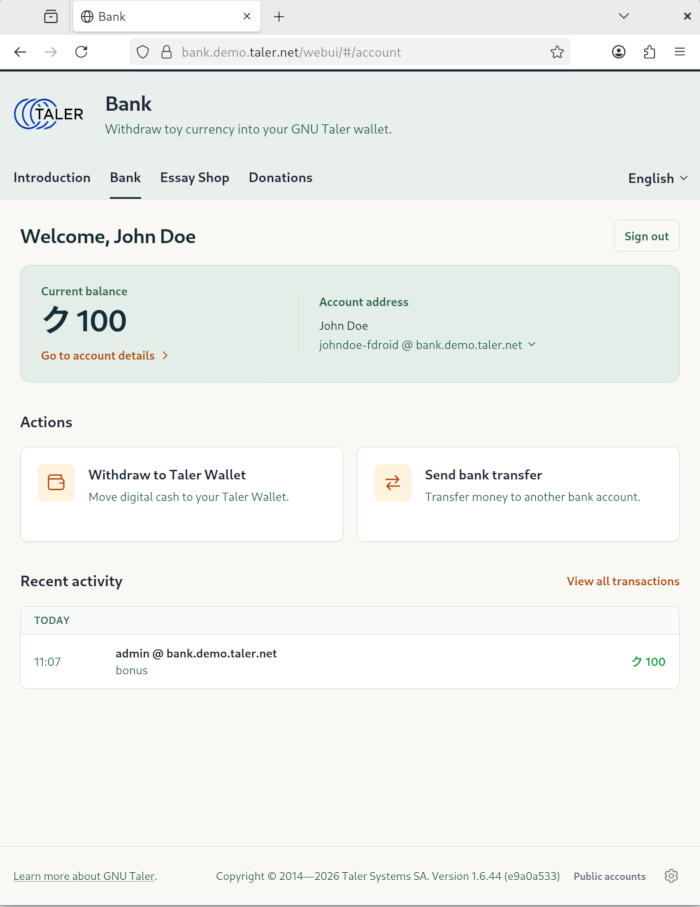
گام 3
Now you have access to the Taler Demo Bank.
-
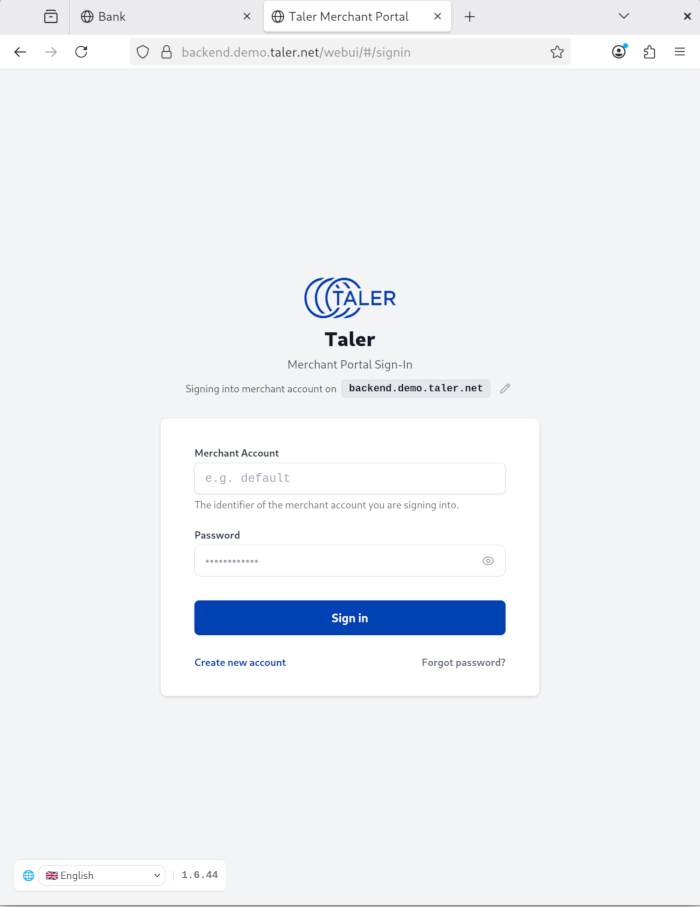
گام 4
Navigate to the Taler demo merchant backend, find the link for creating a new account and click it.
-
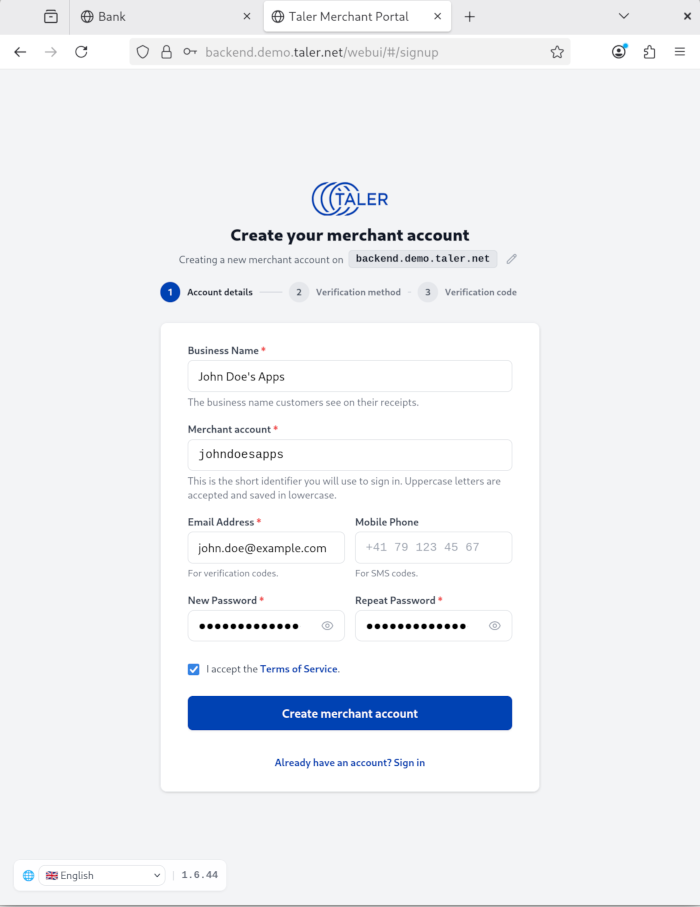
گام 5
Fill out the sign up form.
-
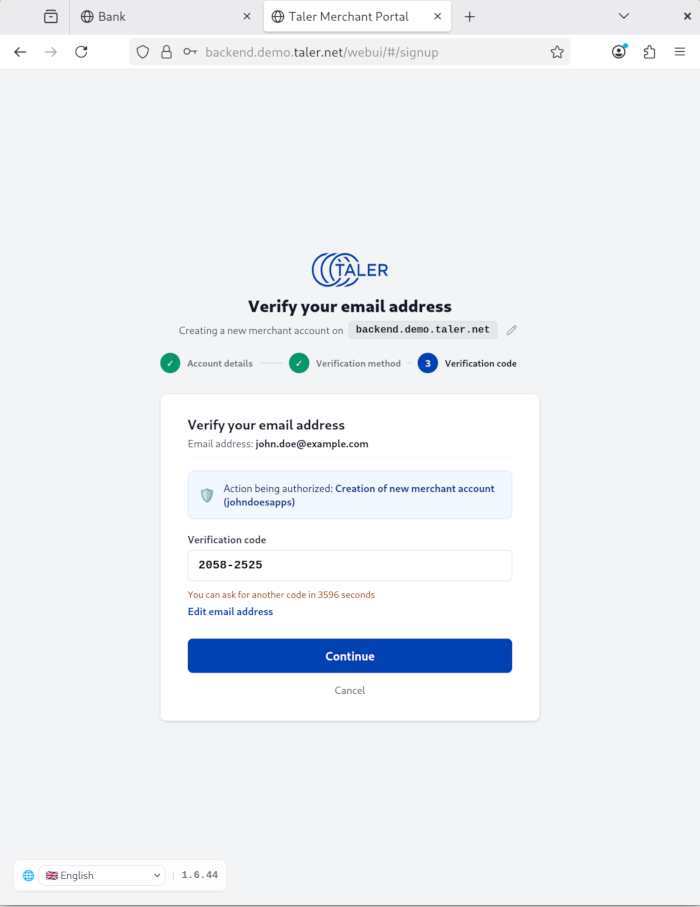
گام 6
Retreive the verification code from your email inbox, paste it into the form field and click continue.
-
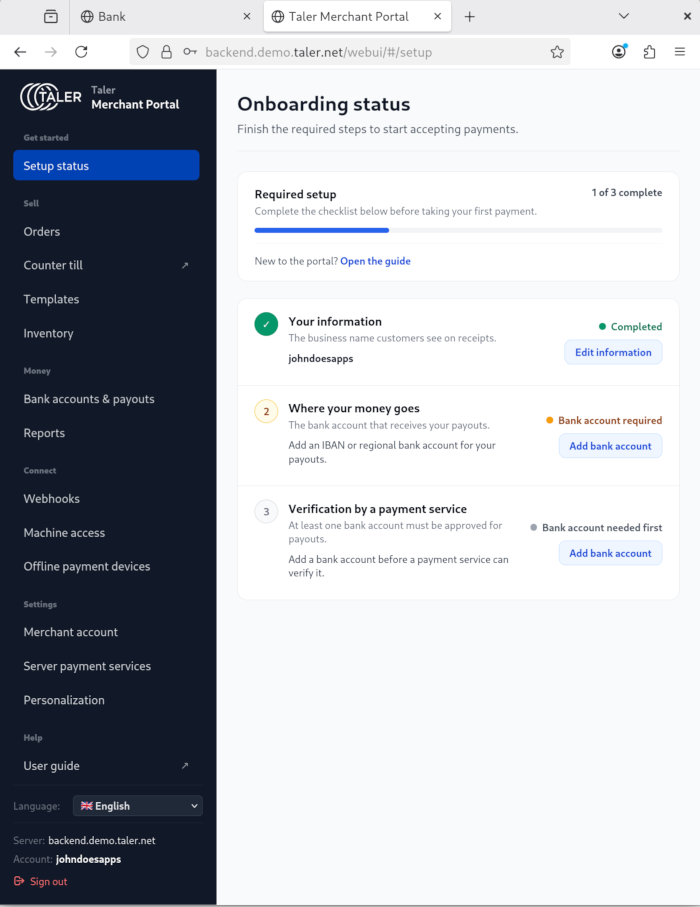
گام 7
Navigate to the 'Bank acounts & payouts' section.
-
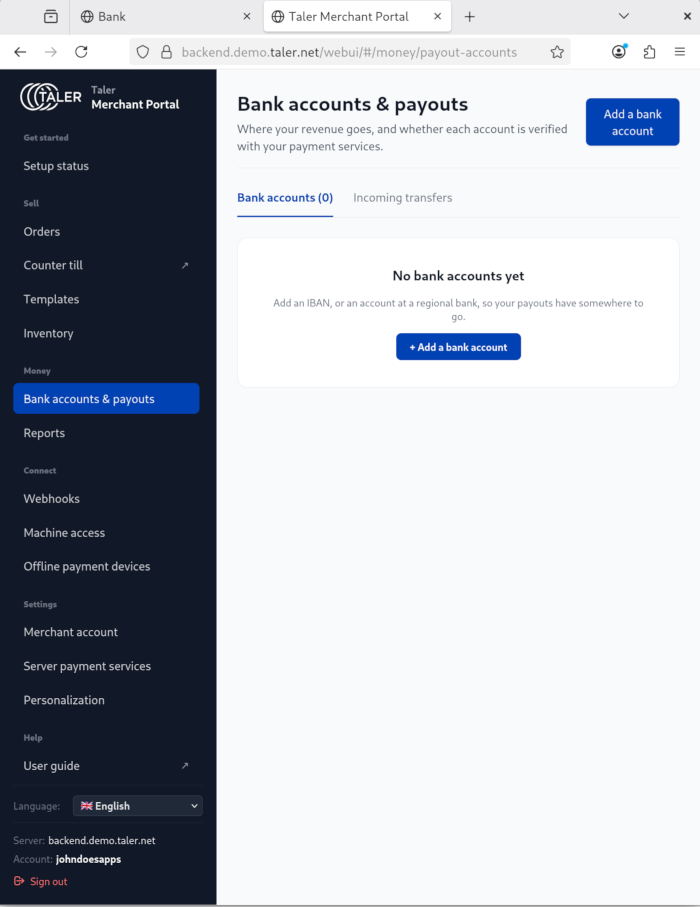
گام 8
Click 'Add a bank account' button.
-
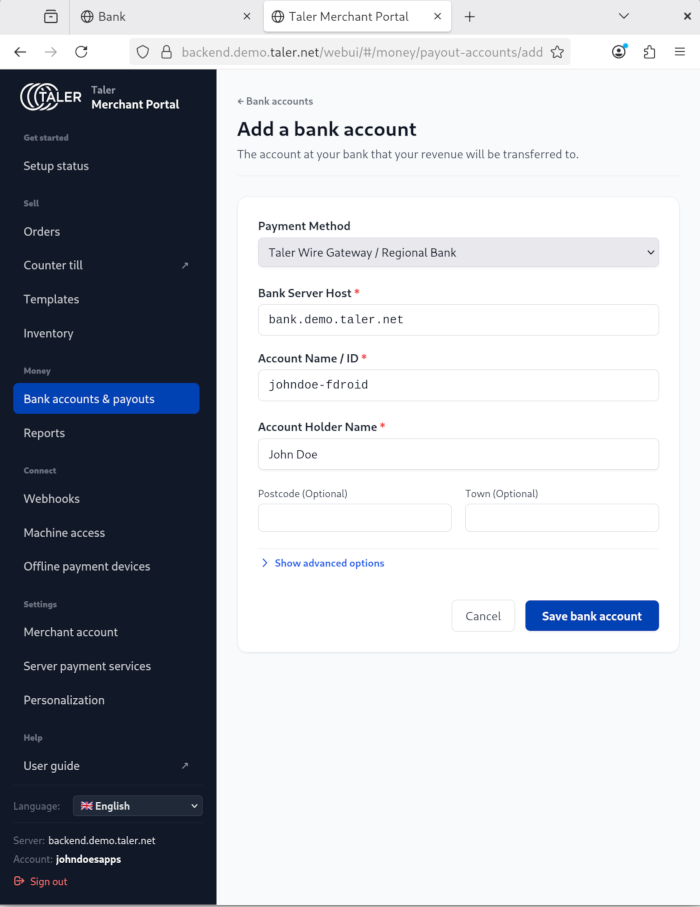
گام 9
Fill out the form for adding a bank account.
-
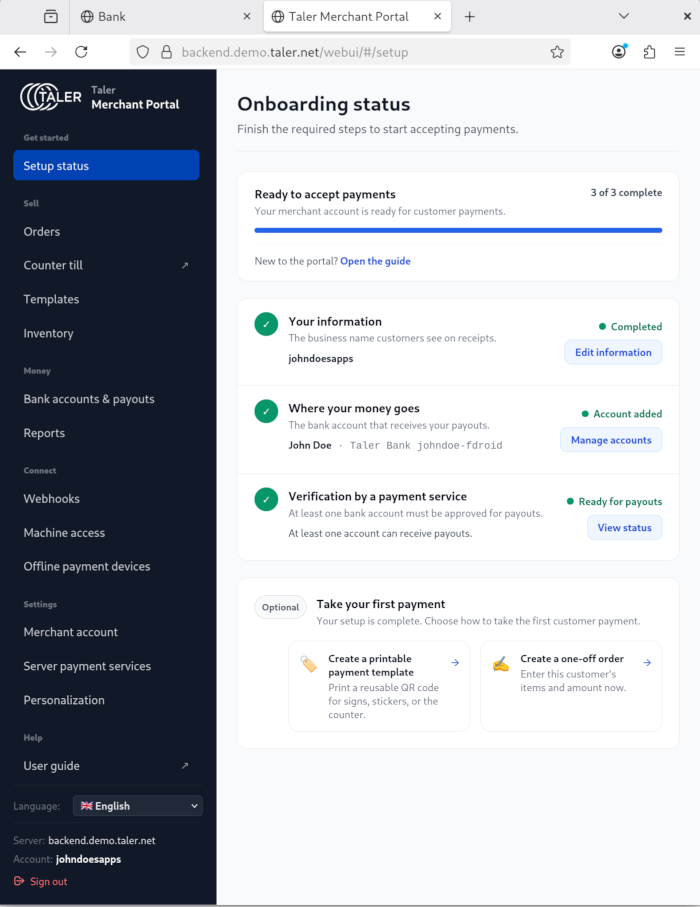
گام 10
Navigate back to 'Setup status', you should be setup for receiving donations now.
-
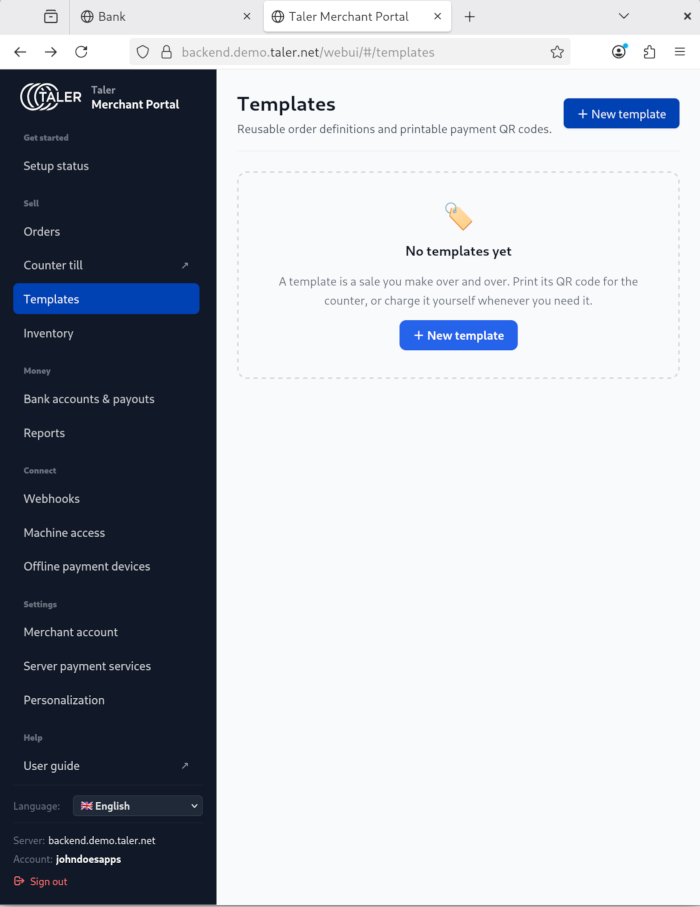
گام 11
Navigate to templates and click 'New template'
-
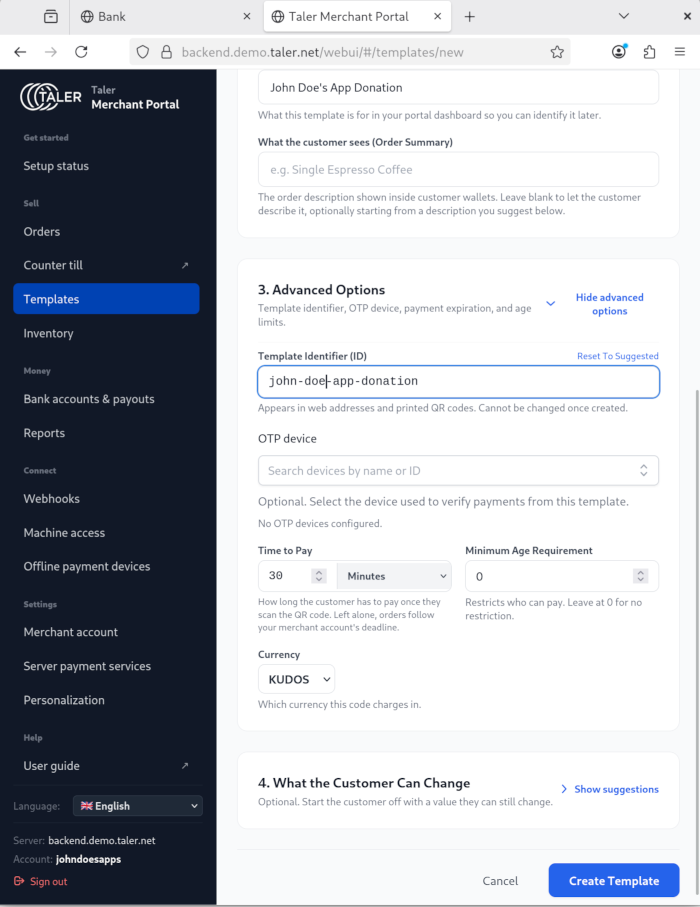
گام 12
Fill out the template form, choose a descriptive name for the 'Template Identifier (ID)' form field. F-Droid might display this to users. It's also recommended to provide descriptive text for the 'Order Summary' field. (e.g. John Doe's App Donation). Finally, click the 'Create Template' button.
-
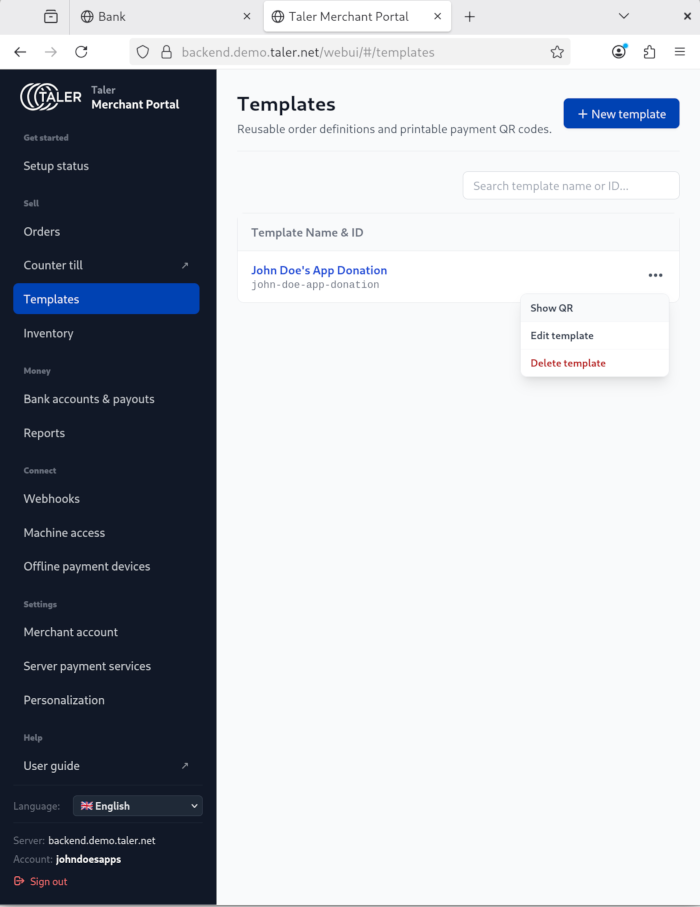
گام 13
To get your taler donation link click the 3 dots button of your donation template and click the 'Show QR' menu item.
-
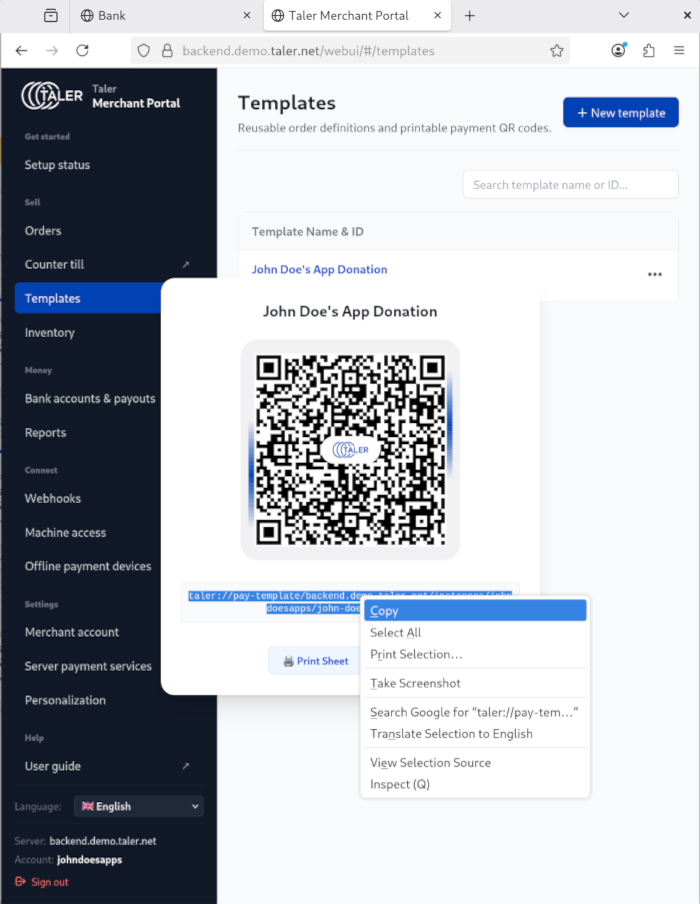
گام 14
Copy the 'taler://' link for your Taler transaction template into the Donate field of your app metadata.
Taler is actively working on adding payment networks for additional currencies. To follow along and see if the team has added your currency, go to the official Taler website.